How to keep private photos out of iPhone widgets and Memories
Stop unexpected photo suggestions, use Apple’s Hidden album, and learn when a separate private photo vault may help.
PhotoSafe Team · Reviewed 2026-11-03
Why a private photo may appear unexpectedly
The Photos widget and Memories surface pictures from your library, which can be awkward when you share your screen or leave your phone on a desk. If you want one photo out of the standard Photos views, hiding that item is a focused first step. If you would rather stop featured suggestions more broadly, adjust the featured-content setting too. Check other photo apps and widgets separately: their behavior can differ.
Hide individual photos from the Photos widget
Open Photos, touch and hold a photo, choose Hide, and confirm. Apple says hidden items no longer appear elsewhere in Photos, including the Photos widget. They remain in the Hidden album rather than being deleted. To check the album, open Photos, select Collections, and find Hidden under Utilities; authenticate if requested. Menu names can vary with your iOS version.


Choose whether to show the Hidden album
On supported iOS versions the Hidden album is locked by default, though its visibility and authentication settings can be changed. To remove its usual entry from Photos, open Settings, Apps, Photos and turn off Show Hidden Album. That setting hides the album’s entry; it does not erase the photos. If you use iCloud Photos, Apple says hidden status also applies on your other connected devices.
Turn off featured photos and Memories
If you prefer to stop automatic featured content more broadly, open Photos, tap Collections, then your account button, and turn off Show Featured Content. Apple says this prevents automatic featured photos and Memories and affects the Photos widget. If you only want to see a person less often, Photos also offers a Don’t Feature a Person choice for a photo. Available controls and wording can vary by iOS version; consult Apple’s instructions for your device.
When a separate photo vault might help
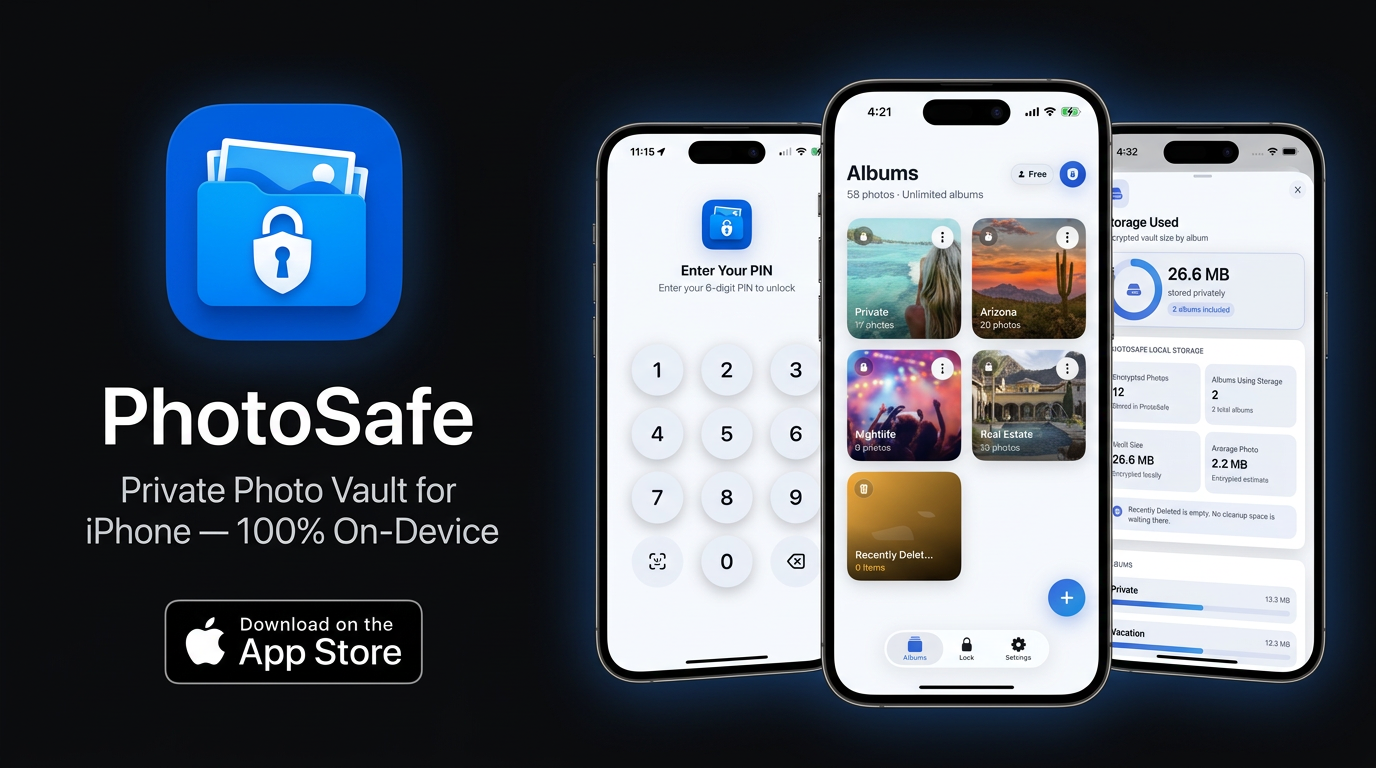
Apple’s Hidden album is built in and may be enough for your needs. A separate vault is useful when you prefer selected photos in a dedicated app and private albums. PhotoSafe’s released iPhone listing describes an encrypted on-device vault, a six-digit PIN, optional supported biometrics, and private album organization. Downloading is free, with optional in-app purchases; check the current offer in the app.
Check the original and any other copies
Importing a photo into a vault creates a separate copy; the original in Apple Photos can still appear according to your Photos settings. Open a non-sensitive test image in the vault, lock and reopen it, and confirm your backup and access plan before changing the original. Review other copies in shared albums, messages, exports, and third-party apps. With iCloud Photos enabled, removing an original from Photos also affects your synchronized library on other devices.
A quick privacy check before sharing your screen
Check the Photos widget, your visible Photos library, and any third-party photo widgets separately. Review the Hidden album’s visibility and authentication settings, and check that your vault is locked. Use Apple’s featured-content controls when you want broader changes. Keep separate safe copies of important pictures; neither hiding nor a vault substitutes for a recovery plan.
Sources
Free download · Optional in-app purchases.