How to hide photos on iPhone: built-in album or separate vault
Hide selected photos with Apple’s Hidden album or a separate vault, then check access before lending someone your iPhone.
PhotoSafe Team · Reviewed 2026-11-02
Start with the built-in option
Open Photos, touch and hold the photo, choose Hide, and confirm. On supported versions of iOS, the Hidden album requires authentication. To remove the album from the usual view, open Settings, Apps, Photos, and turn off Show Hidden Album. Menu locations can differ by iOS version; follow Apple’s instructions for your device.


Hiding and deleting solve different problems
Hiding keeps an image out of the main Photos view; it does not remove every copy. If you use iCloud Photos, hidden items can synchronize across your devices. Shared copies, message attachments, and exports are separate. Decide whether you want to reduce casual visibility or manage a separate collection.
When a separate vault makes sense
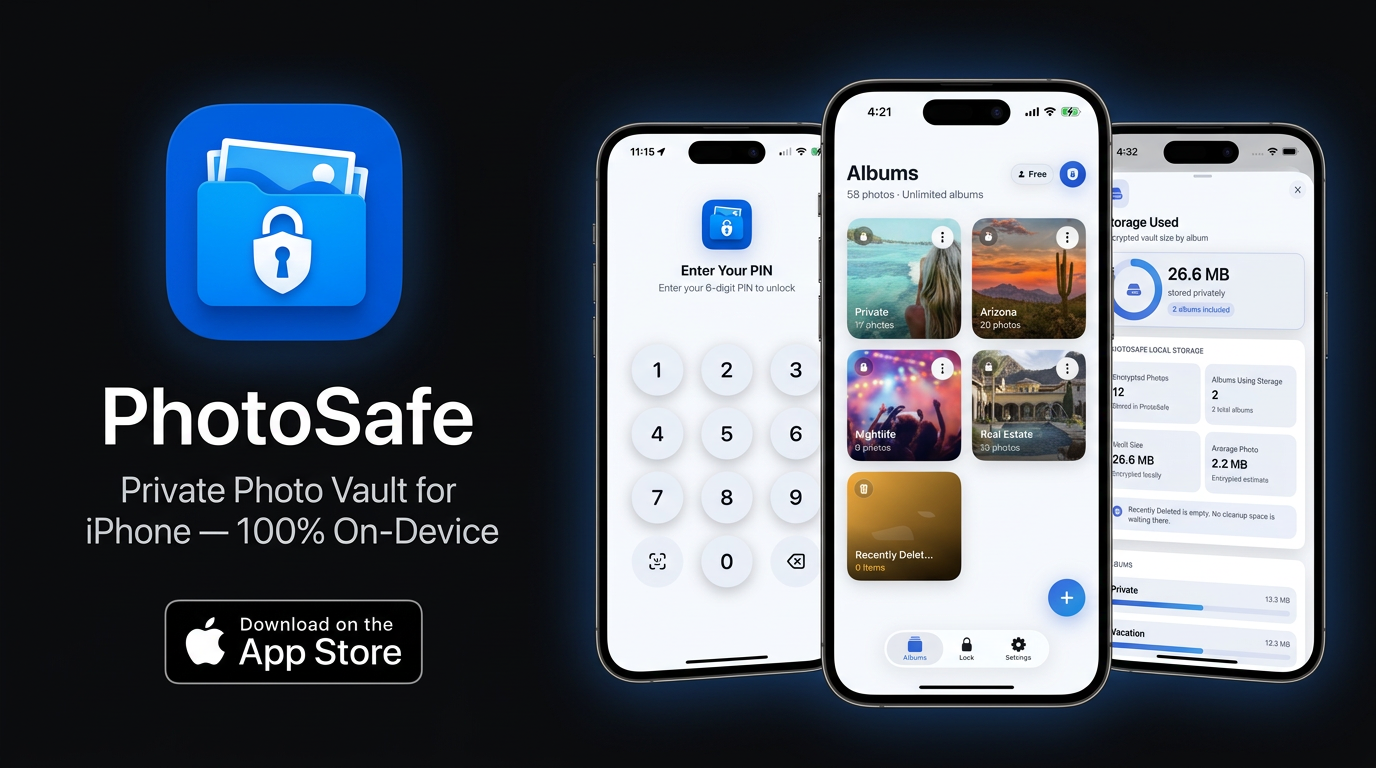
A dedicated app can give selected photos their own organization and access workflow. PhotoSafe provides an encrypted local photo vault with a six-digit PIN, optional biometric access, and private albums. Start with non-sensitive sample images so you understand import, reopening, and the available settings.
Check copies before cleaning up
Open an imported image in the vault before removing its original. Review your recovery plan first. Removing an original can also affect synchronized devices, and Recently Deleted is a separate location. A vault does not recall files someone else has already received.
Before handing someone your iPhone
Showing one picture and lending an unlocked phone are different situations. Decide which app and images the other person needs to use. Close your private collection, then check that reopening the vault asks for authentication. In PhotoSafe, review the installed version’s lock settings and test with a non-sensitive sample; do not assume that briefly switching apps has already locked it. Review any originals still in Photos separately. A vault cannot restrict browsing inside another app you leave open.
Use Guided Access for a single-app task
Apple’s Guided Access can keep the iPhone in one app and limit touch controls. Set it up in Settings, Accessibility, Guided Access, including its passcode. Open the intended app, triple-click the side button or the Home button on older devices, choose Guided Access if prompted, review Session Settings or Options, and tap Start. Test the session before handing over the phone. This limits access between apps; it does not hide private images already visible inside the selected app.
Know how to end the session first
Follow Apple’s instructions for your iOS version to pause Guided Access, authenticate, and tap End. Current instructions use a triple-click; iOS 18 or earlier uses a double-click to pause. Check this before relying on the feature. Apple says Crash Detection and Emergency Services are unavailable during Guided Access, so end the session before an emergency call. Keep your Guided Access passcode private.
Choose the smallest change that meets your need
Use Apple’s built-in album if it meets your needs. Try PhotoSafe when you want a separate private-album workflow. Neither approach replaces a secure device passcode, current software, and a plan for device loss.
Sources
Free download · Optional in-app purchases.