Keep private photos out of iCloud Shared Photo Library
Check which iPhone photos are in your Shared Library, change Camera sharing, and move your own items back before choosing a separate vault.
PhotoSafe Team · Reviewed 2026-11-03
Know which library other people can see
An iCloud Shared Photo Library is a collection shared with its participants, not a private folder inside Photos. Apple says photos moved into it leave your Personal Library and become visible to everyone in the Shared Library. Participants can add, edit, and delete its content. If a photo needs to stay private, first find out which library holds it. A Shared Album is a different Apple feature; do not assume the controls work the same way.
Understand originals and other copies
Check whether Shared Library is enabled
On a current iPhone, open Settings, Apps, Photos, then Shared Library. On iOS 17 or earlier, Apple places Photos directly in Settings. Review the participants and sharing choices shown on your device. Do not change or leave the library just to test privacy; first inspect what it contains and keep a safe copy of important photos.

View only the Shared Library to spot an item
Open Photos and go to Library. In iOS 27, tap Sort and Filter, then Library View; choose Shared Library. Apple also offers Personal Library and Both Libraries. In Both Libraries view, a shared-library badge identifies shared items. The control is in a different place on older iOS versions, so follow Apple's current instructions for your device. Check a non-sensitive sample before relying on the badge alone.

Move a photo you contributed back to Personal Library
Apple says you can move photos and videos that you contributed to the Shared Library back to your Personal Library. Open the item in Photos, tap More, then Move to Personal Library. Check the result in both library views. This changes that item's library placement; it cannot retract screenshots, downloads, or copies another participant already made. If someone else contributed the item, review Apple's participant rules rather than assuming you can move it.
Check where new Camera photos will go
A Shared Library can accept photos directly from Camera. In Settings, Apps, Photos, Shared Library, review Sharing from Camera and whether sharing is automatic, manual, or enabled at home. In Camera, check the Shared Library button before taking a private photo; turn it off to save to Personal Library. The exact controls can vary by iOS version. This prevents a future mistake, but it does not remove an item already shared.

Use a separate vault only after checking shared copies
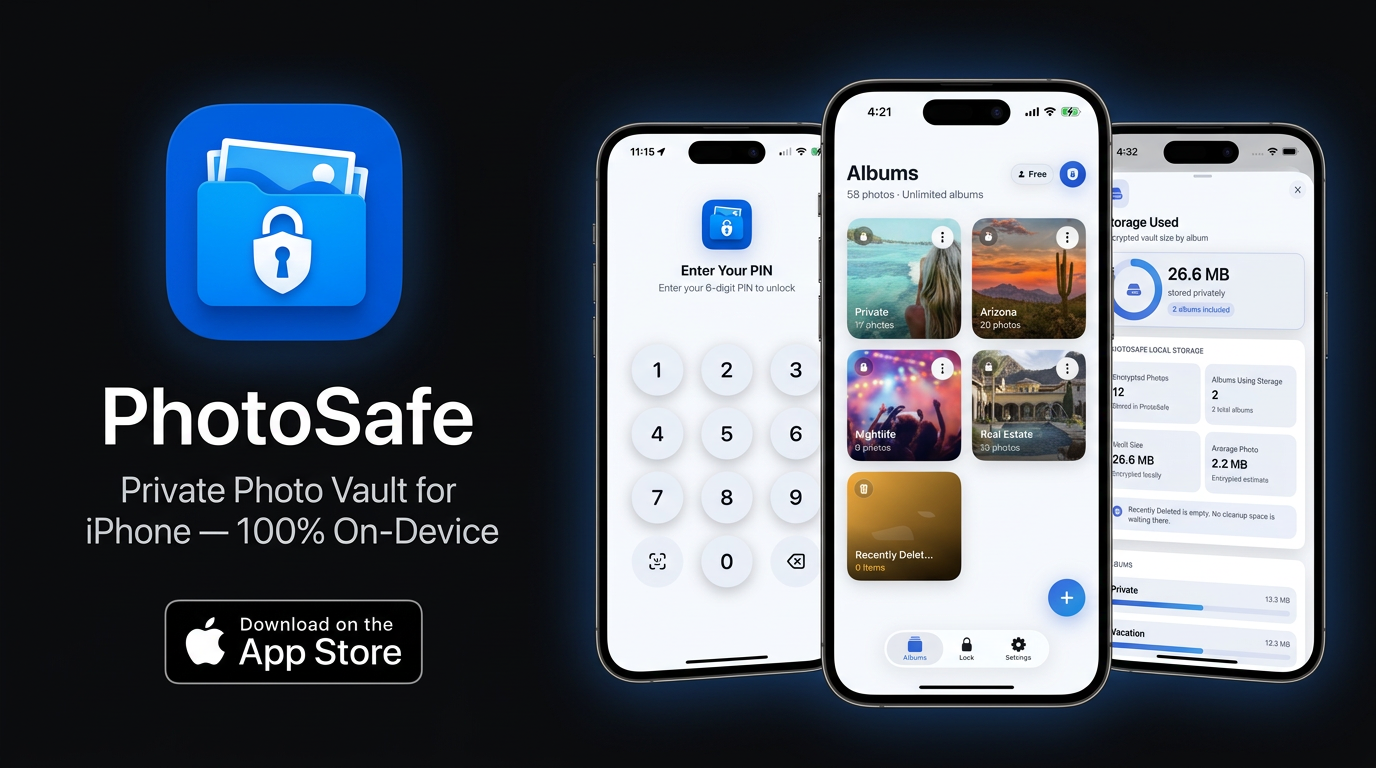
PhotoSafe's released iPhone listing describes an encrypted local photo vault with a six-digit PIN, optional supported biometrics, and private albums. Importing an image into PhotoSafe gives you a vault copy; it does not remove a photo from an iCloud Shared Photo Library or recall a participant's copy. Start with one non-sensitive image, verify it opens after locking and reopening the vault, then review its location in Photos and your recovery plan before changing an original. PhotoSafe is free to download with optional in-app purchases; check current limits and offers in the app.
See how a separate photo vault works
Check imports before changing originals
A short privacy check before you finish
Review Shared Library view, confirm the Camera destination, and check any item you contributed that should be personal. Then review Shared Albums, message attachments, and other copies separately. A library setting or vault app cannot guarantee that every earlier copy is gone. Keep important photos recoverable while you make changes.
Work through the photo privacy checklist
Sources
Free download · Optional in-app purchases.