Encrypted photo storage on iPhone: what to check
Understand encrypted photo storage on iPhone, the role of a vault PIN, iCloud protection, and the checks to make before moving private photos.
PhotoSafe Team · Reviewed 2026-11-03
Start with the photo copy you want to protect
Encrypted photo storage helps protect stored image data, but your privacy also depends on who can open each copy. Start by identifying where a picture exists: Apple Photos, a local vault, shared albums, messages, or an export. Decide whether your immediate goal is to prevent casual browsing, organize a separate collection, or protect a cloud copy. These goals can involve different controls. Write down which copy you want to protect before choosing an app or changing a setting.
Plan your storage and recovery workflow
Understand encryption at rest and in transit
Encryption at rest concerns data while it is stored. Encryption in transit concerns data while it moves between systems. Apple documents file encryption through Data Protection on iPhone, and says iCloud Photos encrypts files in transit and at rest. Those descriptions do not mean every person who can unlock a device or account is prevented from viewing a photo. When evaluating a photo-storage service, check where files live, who holds the keys, and how access is granted. A padlock graphic alone does not answer those questions.
Use the photo-vault selection checklist
Treat a photo PIN and file encryption as separate checks
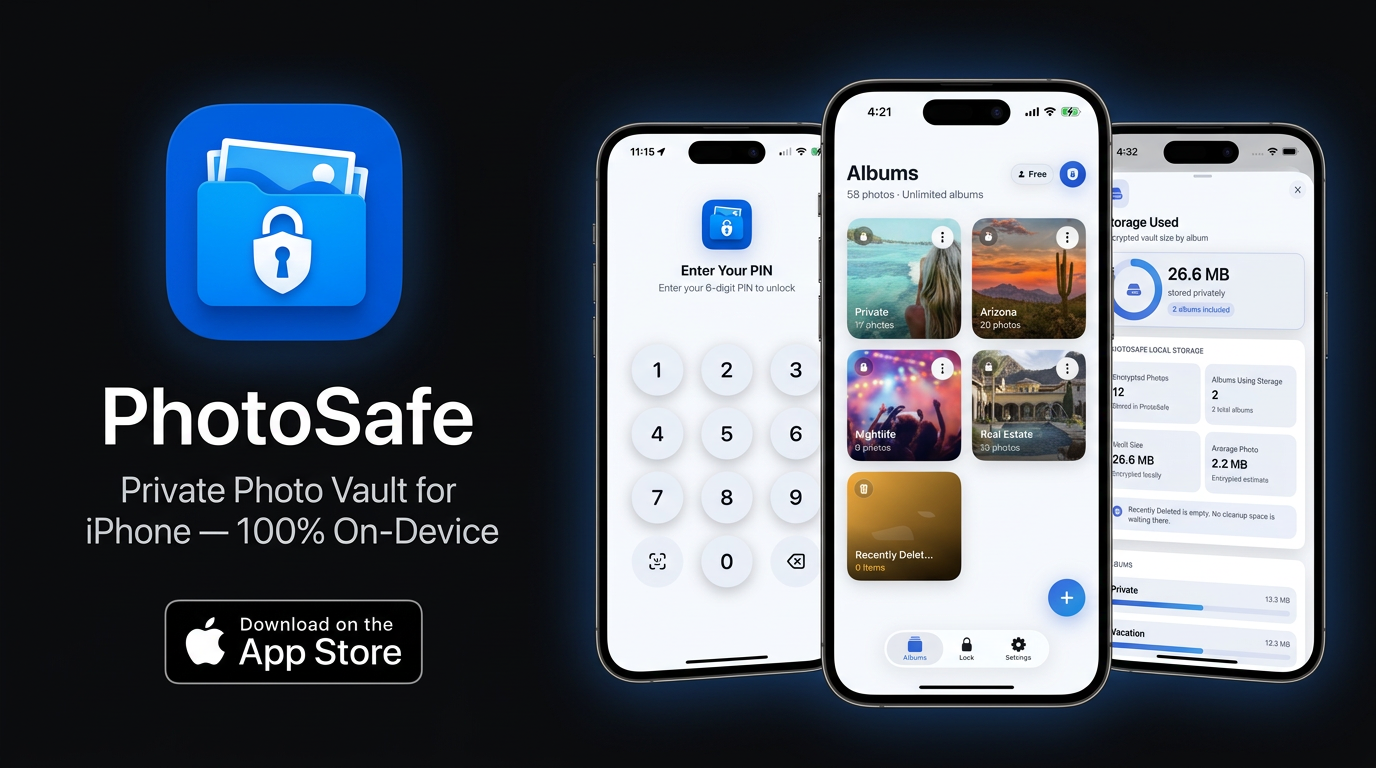
A PIN is part of an access workflow: it determines what you must enter before the app lets you view a collection. Encryption concerns how stored data is protected. Test the lock with a non-sensitive sample, then read the developer’s description of storage and recovery. Apple’s Hidden album is locked by default on supported software and requires authentication; hiding an image is still a different choice from placing a copy in a separate vault. A lock-screen test is useful for checking behavior, but it is not a cryptographic audit.
Set up and check a separate photo-vault PIN
Understand the built-in Hidden album

Check the protection used for iCloud Photos
Apple distinguishes standard iCloud data protection from Advanced Data Protection. Under standard protection, Photos is encrypted in transit and on Apple’s servers, with keys stored by Apple. With Advanced Data Protection, Photos is among the categories protected with end-to-end encryption using trusted devices. Some metadata and sharing workflows have different protection. Read Apple’s current requirements, availability, sharing exceptions, and recovery instructions before changing the setting. This is a setting for your Apple Account; installing a local photo vault does not change it.
Understand synchronized originals and independent backups
What PhotoSafe offers for local photos
PhotoSafe’s released iPhone listing describes an encrypted on-device photo vault, a private six-digit PIN, optional supported biometric unlocking, and private albums. An account is not required to protect and organize the local collection. Import selected photos, check that they open inside the vault, and review the lock settings in your installed version. The app is free to download with optional Pro purchases. These product details were checked against App Store version 1.0 on November 3, 2026; check the app for current limits and offers.
Check a local and offline vault workflow
Review access beyond the vault
After choosing storage, review the other paths through which a picture can be viewed or shared. Check photo-library permissions for other apps and consider what you export through a share sheet. Apple’s Photos privacy guidance explains that photo access and shared metadata are controlled through their own settings. An encrypted vault does not retract a photo already sent to someone, and a vault import does not change the original’s visibility. Use the linked permission and import checklists to review these separate copies.
Review which apps can access your photos
Work through your photo privacy checklist
Make a recovery plan before removing originals
Decide how you would regain access if you forgot a code, lost the phone, or changed devices. Cloud account recovery and a local vault’s recovery process are different. Apple explains that Advanced Data Protection changes recovery responsibilities because Apple does not hold the keys needed to recover that end-to-end encrypted data. For PhotoSafe, read the existing PIN and migration guidance before resetting, reinstalling, or erasing a device. Keep an independently recoverable copy of important pictures until you have checked the process; encryption alone does not provide a backup.
Read PhotoSafe’s PIN and recovery limits
Prepare before moving to a new iPhone
Sources
Free download · Optional in-app purchases.